

Minecraft Skin Maker is a tool for creating, editing, and previewing custom Minecraft character skins. Instead of using the default Steve or Alex appearance, players can design their own clothes, hair, faces, colors, and pixel details before exporting the finished skin as a PNG file.
Minecraft officially supports custom skins, while popular skin editors typically provide drawing tools, color controls, model selection, body-part editing, and 3D previews to make skin creation easier.
For more Minecraft utilities and guides, visit Minecraft APK or browse the Tools collection.
What Is a Minecraft Skin Maker?
A Minecraft skin is a pixel-based texture wrapped around the player’s character model. A skin maker lets you edit that texture visually instead of manually modifying each section of the PNG template.
Most modern Minecraft skin editors let players:
- Draw individual pixels
- Select custom colors
- Erase unwanted details
- Fill larger areas quickly
- Zoom in for precise editing
- Rotate a 3D character preview
- Hide or show body parts
- Import an existing skin
- Choose Classic or Slim arms
- Export the completed design as PNG
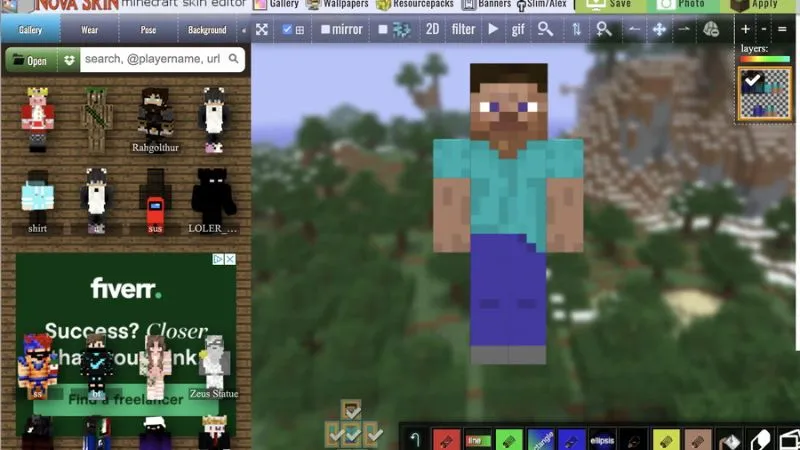
These functions are common across leading editors such as Skindex, Planet Minecraft, Nova Skin, and Tynker.
Main Features of Minecraft Skin Maker
Pixel Editing Tools
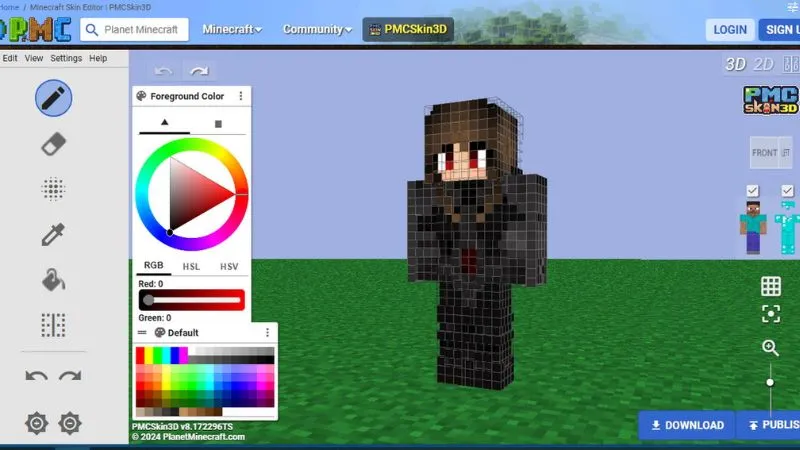
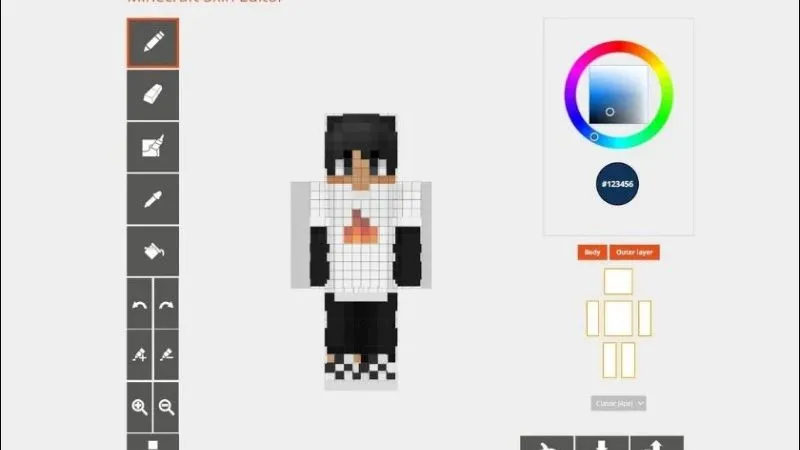
Skin makers provide simple tools such as brushes, pencils, erasers, fill tools, and color pickers.
Because Minecraft skins are pixel-based, these tools allow you to customize small details such as:
- Eyes
- Hair
- Shoes
- Shirts
- Jackets
- Armor-style clothing
- Logos and patterns
Working pixel by pixel gives you more control than using a pre-made character.
3D Skin Preview
A 3D preview helps you see how a flat skin texture looks when wrapped around a Minecraft character.
Many popular skin editors allow you to rotate and zoom the model while editing. This makes it easier to check the front, back, arms, legs, and sides before downloading the skin.
Classic and Slim Models
Minecraft supports two common player body types:
- Classic/Wide: Steve-style arms
- Slim: Alex-style thinner arms
The skin must match the model you select or the arm textures may appear incorrectly. Minecraft’s official Java skin guide supports both Standard and Slim character templates.
For Bedrock skin packs, Microsoft identifies geometry.humanoid.custom as the standard model and geometry.humanoid.customSlim as the slim model.
Import Existing Skins
You do not always need to start from a blank template.
A good Minecraft Skin Maker lets you import an existing skin and change:
- Colors
- Clothes
- Hair
- Face details
- Accessories
- Shading
This is useful if you already have a skin you like but want to create your own variation.
PNG Export
Minecraft custom skin textures use PNG files. Minecraft’s official documentation specifies PNG textures for custom skins and skin packs.
Microsoft recommends 64×64 pixels for standard Bedrock skin textures, while 64×32 is associated with legacy skins.
For the widest compatibility, a standard 64×64 Minecraft skin is usually the safest choice.
How to Create a Minecraft Skin
Creating your own skin is straightforward.
Step 1: Choose a Character Model
Select either:
- Classic/Wide
- Slim
Choose this before drawing the arms so the texture lines up correctly.
Step 2: Start From Blank or Import a Skin
You can create a completely original character or upload an existing Minecraft skin as a starting point.
Step 3: Edit the Skin
Use the drawing tools to customize the character.
Start with larger areas such as:
- Skin color
- Hair
- Shirt
- Pants
- Shoes
Then add smaller details and shading.
Step 4: Check the 3D Preview
Rotate the model and inspect every side.
Pay particular attention to:
- Back of the head
- Inside and outside of arms
- Legs
- Side of the torso
- Outer skin layer
This prevents blank or incorrectly colored areas from appearing in-game.
Step 5: Export the Skin
Download the completed design as a PNG file.
Keep the original PNG if you plan to edit the skin again later.
How to Use a Custom Skin in Minecraft Bedrock
Minecraft Bedrock uses the Dressing Room for character customization. Mojang states that custom skin importing is supported on mobile and Windows Bedrock platforms.
On Android, the general process is:
- Save your completed skin PNG to the device.
- Open Minecraft.
- Enter Dressing Room.
- Select the character slot you want to edit.
- Choose the Classic Skin option.
- Import your custom skin.
- Select the correct Classic or Slim model.
- Equip the skin.
The Character Creator and classic custom skins are different systems; Character Creator items cannot simply edit a classic skin pixel by pixel.
How to Use a Custom Skin in Minecraft Java Edition
Minecraft Java Edition lets players upload custom skins through the Minecraft Launcher or their Minecraft profile.
Using the Launcher:
- Open Minecraft Launcher.
- Select Minecraft: Java Edition.
- Open the Skins tab.
- Choose New Skin.
- Select Wide or Slim.
- Browse for your PNG file.
- Choose Save & Use.
Minecraft Java also allows saved skins to remain in your skin library for easier switching.
Tips for Making Better Minecraft Skins
Add Simple Shading
Avoid using only one flat color for large areas.
Using slightly lighter and darker shades can add more depth to clothing, hair, and facial details.
Preview Every Side
A design may look correct from the front but contain unfinished areas on the back or sides.
Use the 3D preview regularly while editing.
Keep Details Readable
Minecraft characters are small during normal gameplay.
Large patterns and clear color differences usually remain more visible than extremely detailed pixel art.
Match the Correct Arm Type
If your skin was designed for Slim arms, select Slim when importing it.
Choosing the wrong model can distort the arm texture.
Keep the Original PNG
Save a backup before making major changes so you can restore an earlier design.
Is Minecraft Skin Maker Free?
Many web-based Minecraft skin editors offer free creation and PNG export, although individual sites may provide additional services or account features. Tynker, Skindex-style editors, and Planet Minecraft demonstrate the common browser-based skin editing workflow.
You generally do not need a special modified Minecraft APK simply to create a custom skin.
Is Minecraft Skin Maker Safe?
The skin itself is normally just a PNG image, but the editor or APK you use to create it is a separate security consideration. Minecraft officially notes that skins can be created using graphics editors, third-party software, and websites.
When choosing a skin tool:
- Prefer established editors.
- Avoid APKs requesting unrelated permissions.
- Do not enter your Microsoft password into unknown skin websites.
- Keep backups of your skin PNG files.
- Scan downloaded applications before installation.
A browser-based editor can be preferable when you only need to create and download a skin.
Conclusion
Minecraft Skin Maker gives players a simple way to create a unique character instead of relying on default or pre-made skins.
Useful editors provide pixel drawing, color tools, Classic and Slim models, body-part controls, 3D previews, skin importing, and PNG export. After finishing your design, you can import the skin into supported Minecraft Bedrock platforms or upload it through Minecraft Java Edition.
For more Minecraft customization, try BlockLauncher Pro APK for legacy scripts and patches or Minecraft Toolbox APK for in-game utility tools.
What is Minecraft Skin Maker?
Minecraft Skin Maker is a type of editor used to design, modify, preview, and export custom Minecraft character skins.
What file format does Minecraft use for skins?
Minecraft custom skins use PNG image files.
What size should a Minecraft skin be?
Microsoft recommends 64×64 pixels for standard Bedrock skin textures, while 64×32 is considered a legacy format.
What is the difference between Classic and Slim skins?
Classic/Wide uses the standard Steve-style model, while Slim uses thinner Alex-style arms. The correct model must be selected when importing the skin.
Can I create my own Minecraft skin for free?
Yes. Several popular browser-based Minecraft skin editors provide tools for creating and editing skins without requiring a dedicated game modification.


